Overview
Pixcode gives developers one browser-based workspace for AI coding CLIs. The app runs locally or on a server, serves a React/Vite frontend, and exposes an Express/WebSocket backend that controls provider processes, project files, Git state, shell sessions, notifications, NanoClaw tasks, and the production agent loop.
The core idea is simple: keep the provider-native command line tools, but add a serious control surface around them. A coding agent can edit files, run commands, wait for permissions, fail, recover, or hand work to another model. Pixcode is designed to make those states visible and manageable instead of hiding them behind a blank terminal.
Developers, solo builders, teams, educators, and automation-heavy users who want to run AI coding agents on their own machine or server.
Pixcode is not a hosted cloud IDE and not an official OpenAI, Anthropic, Google, Cursor, Qwen, or OpenCode product.
Provider support
Pixcode currently targets Claude Code, Cursor CLI, OpenAI Codex, Gemini CLI, Qwen Code, and OpenCode. Each provider can have its own authentication flow, model list, session handling, MCP behavior, CLI installation status, and runtime output style.
- Claude Code support with sessions, hooks, notifications, and MCP-related provider settings.
- Codex support for OpenAI-backed coding workflows and REST-triggered automation.
- Cursor CLI support for developers who already keep Cursor CLI in their local workflow.
- Gemini CLI support for Google model workflows.
- Qwen Code support for Qwen-based coding flows.
- OpenCode support with model selection and free/open provider use cases.
GitHub repository access is OAuth-first: use the authenticated browser flow from onboarding or Settings. A personal access token is only a legacy fallback, and saved GitHub credentials remain encrypted in Pixcode's credential store.
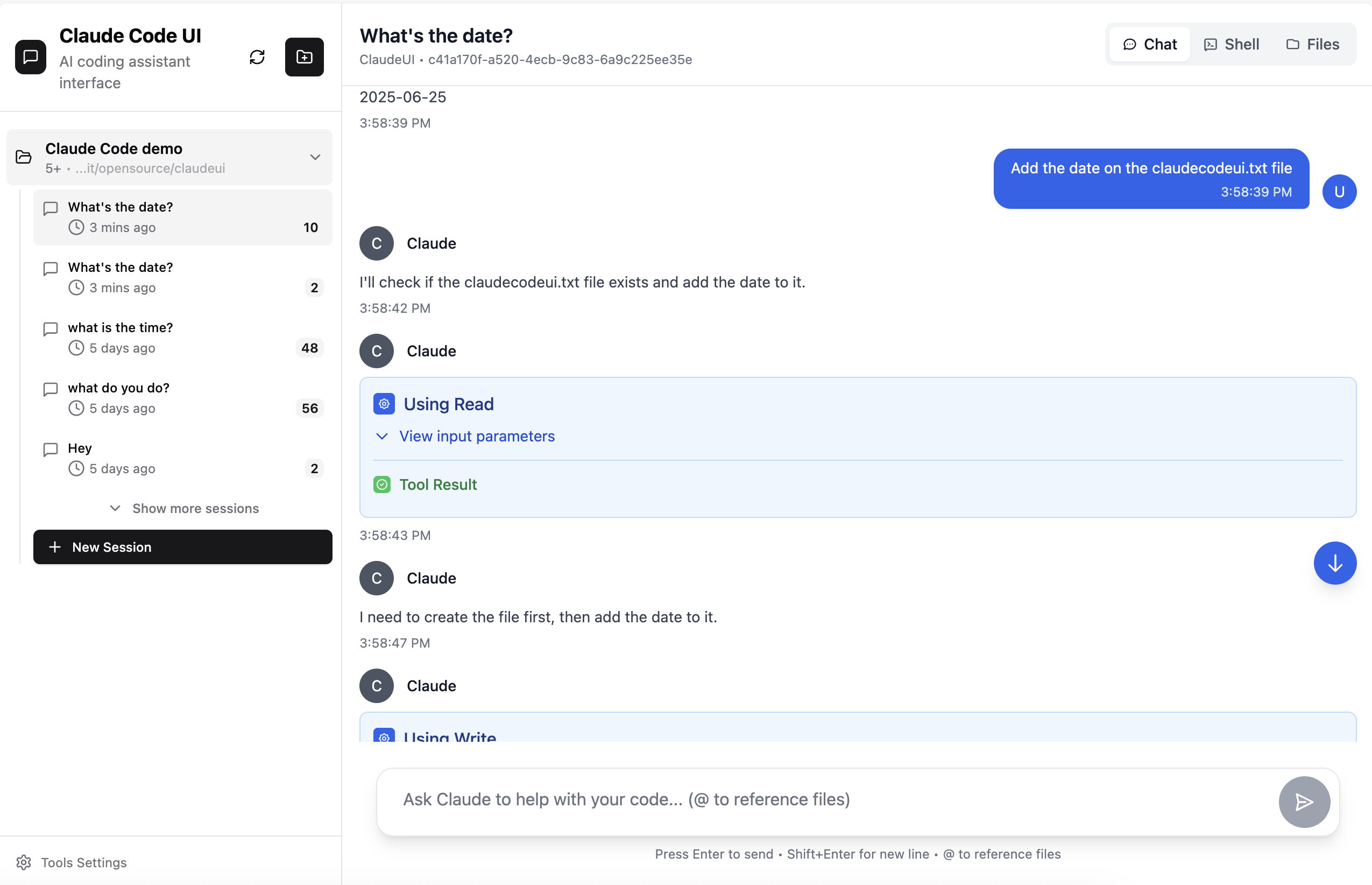
Workspace UI
The Pixcode workspace is organized around the active project. The main area can be a chat screen, task surface, or control room, depending on what the user is doing. Supporting panels such as Shell, Files, and Source Control can open alongside the main view, so the user does not lose context.
Chat
Chat is project-aware and session-based. The prompt composer stays fixed at the bottom of the screen in the main chat/project view. Users can switch providers and modes, send multiline messages, use slash commands, and review tool output in structured components.
Shell
The shell panel gives direct project terminal access from inside the browser. On desktop, the panel can open as a split view first and expand to a full panel if needed. On mobile, the layout avoids desktop-only split behavior and adapts to the smaller screen.
Files
The file browser supports project navigation, file opening, editing, upload, rename, delete, and detailed metadata. Narrow-panel behavior is tuned so long names and permissions do not consume the entire view.
Source Control
Source Control shows Git status, changed files, diffs, branches, commits, and repository actions. It is designed to be close to agent work, because code-generating agents must be reviewed through actual diffs, not only through chat summaries.
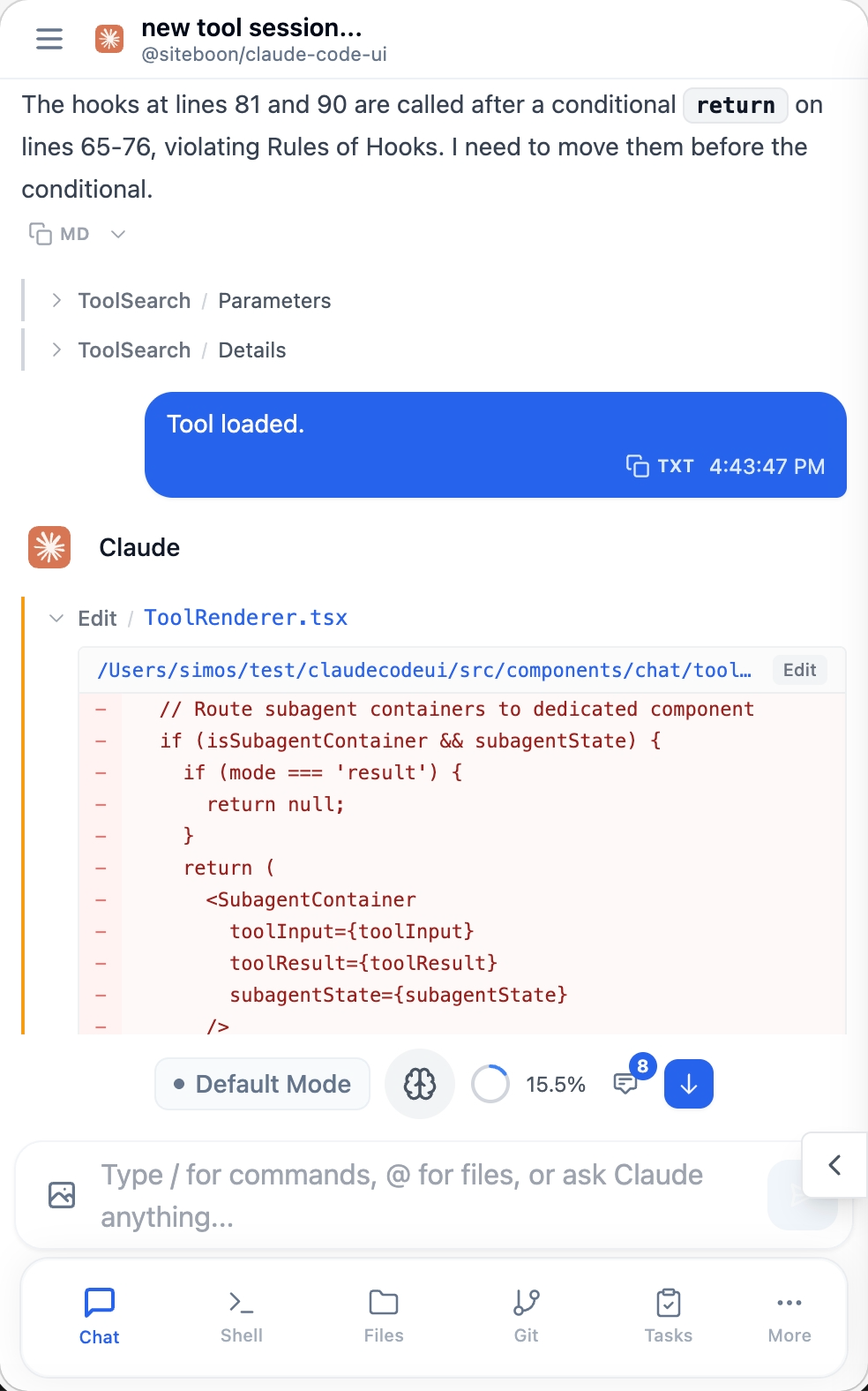
Changed files command center
Pixcode can watch Git changes or local filesystem changes. In Quick Settings, the Command Center view can show changed files as they appear, highlight newly modified paths, and open the related file location. This helps users keep control when an AI agent edits multiple files quickly, even when the project is not a Git repository.
The important design point is that this does not depend on GitHub pushes. It works with local changes, so the user can review the agent's work before committing, pushing, tagging, or publishing.
Multi-agent task automation
NanoClaw is the maintained multi-CLI task surface. It runs an agent immediately, schedules one-shot/interval/cron work, keeps task ownership scoped to the caller, and exposes status, channels, agent inventory, task lifecycle, conversations, and SSE events.
- Immediate multi-CLI runs through
/api/nanoclaw/run. - Schedules through
/api/nanoclaw/tasks(or the UI-compatible/api/tasksalias). - Pause, resume, cancel, update, and delete task controls.
- Per-user project and task ownership checks for remote clients.
- Channel, agent, conversation, and SSE event endpoints.
- Admin-only production agent loop for review queue, CI repair plans, checkpoints, and release policy.
The pre-1.55 /api/orchestration/* workflow routes are retired. See orchestration.html for migration context and the active API reference for current routes.
Background workflows
NanoClaw schedules project-aware background tasks inside the current Pixcode instance. The production agent loop adds admin-only review, CI repair, scheduler jobs, workspace checkpoints, and desktop release policy checks.
Use a scoped API key in an Authorization or X-API-Key header. Browser SSE/WebSocket clients should mint a one-shot ticket with POST /api/auth/stream-ticket instead of putting a reusable credential in a URL.
GET /api/nanoclaw/status
GET /api/nanoclaw/tasks?projectId=my-app
POST /api/nanoclaw/run
GET /api/production-agent-loop/review-queue
API and automation
Pixcode is API-first internally: the frontend communicates with the backend through REST and WebSocket APIs. External tools can use Pixcode API keys for automation. New keys use the `px_` prefix, while older `ck_` keys remain accepted for compatibility.
curl http://localhost:3001/api/projects \
  -H "Authorization: Bearer px_your_key_here"
Automation can list projects, run or schedule NanoClaw tasks, stream task events, manage review queues, parse CI output into repair plans, and integrate Pixcode into CI, scripts, dashboards, or Telegram-style bridges.
See api-automation.html and openapi.yaml.
Notifications and Telegram
Long-running agent tasks should report back. Pixcode includes browser push notification support and a Telegram pairing flow. Users can receive notifications when sessions complete, fail, or require action. Telegram bridge behavior can route messages back into the Pixcode instance when enabled.
Plugins and MCP
Pixcode includes extension points for provider tools, MCP server management, and plugins. Provider-specific settings can manage MCP configuration, sessions, API-key credentials, provider-native OAuth or login state where supported, install jobs, and model catalogs. Plugins can add frontend tabs and optional backend services.
- MCP server management for supported providers.
- Provider auth and session panels.
- Model refresh and CLI install status.
- Plugin loader support for UI tabs and backend integrations.
Themes and appearance
Pixcode supports dark/light mode, built-in accent palettes, VS Code-like colors, emerald command-style colors, and custom accent values for dark and light modes. Theme tokens affect buttons, active states, focus rings, navigation, and other high-emphasis UI parts together.
Install and deployment
Pixcode targets Node.js 22+. The recommended quick start is npx or a global npm installation. Normal installed runtime serves the backend and built frontend through port 3001. Vite port 5173 is only for separate frontend development.
npx @pixelbyte-software/pixcodenpm install -g @pixelbyte-software/pixcode
pixcodepixcode daemon install --mode auto --port 3001
pixcode daemon status --mode autoDesktop installers are published from GitHub releases for Windows `.exe`, macOS `.dmg`, and Linux package/AppImage-style assets depending on the release.
For a public server, use the optional Docker HTTPS overlay with Caddy. Caddy terminates TLS on ports 80/443 and proxies to Pixcode's private port 3001; do not expose port 3001 directly to the Internet. `sslip.io` and `nip.io` provide DNS only, so set `PUBLIC_IP` (or `PIXCODE_DOMAIN` for a real domain) and let Caddy obtain the certificate.
Security model
Pixcode can control project files, shell sessions, Git state, provider CLIs, API keys, and external notification channels. Treat it like a powerful local admin interface. Use strong account credentials, rotate exposed API keys, and terminate public HTTPS at Caddy (or another trusted reverse proxy) while keeping Pixcode's port 3001 private.
- Local account login protects the web UI.
- API keys are revocable and should use the smallest method/path scope needed for the integration.
- Browser SSE/WebSocket clients should use a short-lived stream ticket; do not put reusable keys in URLs.
- Provider secrets should not be exposed in logs, screenshots, public pages, or issue reports.
- Remote deployments should be treated as sensitive developer infrastructure.
Development workflow
The frontend is React + Vite. The backend is Express + WebSocket with provider routes, NanoClaw task modules, a production agent loop, JSON-backed auth data, and CLI adapter files. There is no unit test suite configured today; use typecheck, lint, build, and targeted manual smoke checks.
npm install
npm run typecheck
npm run lint
npm run build
Important: `npm run dev` starts the daemon manager on Linux. For separate frontend development, use `npm run client`. For built backend runtime, rebuild before `npm run server`.